Terminal
The trading screen, panel by panel: the chart, the order panel, your positions, and the risk readouts.
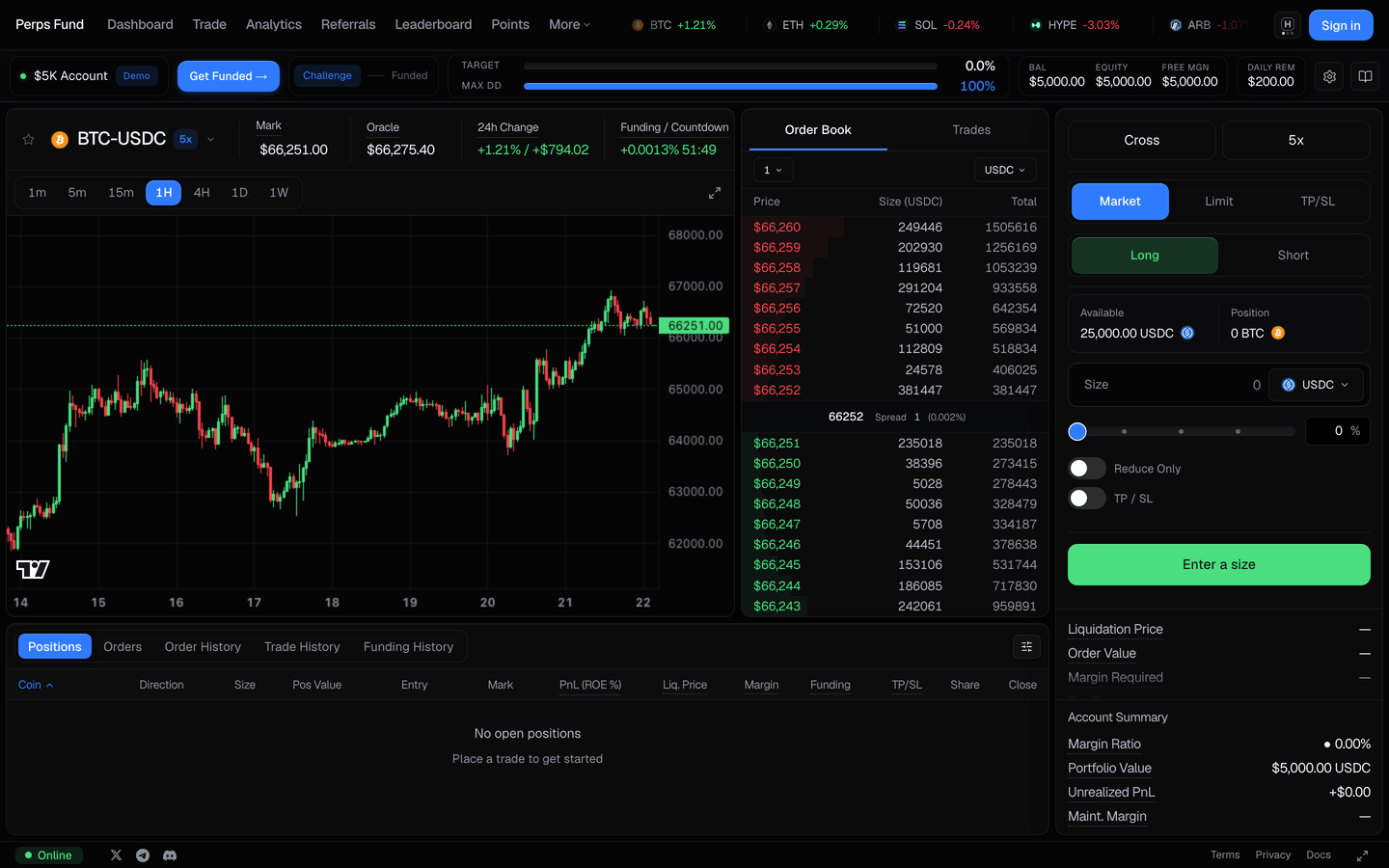
The terminal is where you trade. You place orders on a simulated account priced on live prices: the chart and order book in the center, the order panel on the right, and your positions and history along the bottom, with a top bar that keeps your balance, equity, and risk limits in view at all times.
This page explains what each panel shows and does. For the exact numbers and the precise way the limits are measured and enforced, it links to the Rules; a dedicated Trading rules guide is also coming to these docs.
Try it first, no account needed
Open /trade signed out and it runs entirely in your browser on a simulated account - the fastest way to learn the screen before you start an evaluation. Signed in, the same link opens your own account instead, so what you place there is real.
The top bar
The bar across the top keeps your account state and the market in view while you trade.
| Element | What it shows |
|---|---|
| Balance, Equity, Available | Your free balance, your live equity (which moves with your open profit and loss), and the margin available for new positions. |
| Price ticker | A scrolling feed of market prices and 24h change, filterable by Crypto / TradFi / favorites. |
| Account selector | Switch between your accounts. A demo account also shows a reset control. |
| Phase and risk readouts | Your phase progress, profit target, and how much daily-loss and max-drawdown room remains. How each floor is measured is in the Rules. |
The chart
The center holds the price chart: a candlestick view with timeframe tabs and overlays for your entry, take profit, stop loss, and your risk floors, so your position and your limits sit on the same price axis.
The order book and trades
Next to the chart, a panel toggles between the order book (live bids and asks) and the recent trades feed, so you can read current market depth and flow.
The order panel
The right panel is where you build an order, top to bottom: margin mode and leverage, the order type (Market or Limit), the side (Long or Short), the size, and optional reduce-only and take-profit / stop-loss fields. The size field takes a value in USDC or in the asset, with a slider for a percentage of your available balance. As you build the order, a cost readout updates live.
| Readout | What it means |
|---|---|
| Order value | The full size of the position in dollars (size times price). |
| Margin required | The slice of your balance held to open the position. Smaller than the order value because of leverage. |
| Estimated fee | The simulated trading fee: taker 0.045%, maker 0.015% on notional. |
| Liquidation price | The price at which this position's loss would pull your equity down to its loss floor. It is your account breach shown as a price, not a separate per-trade liquidation. |
Leverage and margin
Leverage is capped per market by firm policy, and the order panel shows the cap for the current market. The caps by asset tier:
| Asset tier | Max leverage |
|---|---|
| Majors - BTC, ETH | 5x |
| Stocks, indices, commodities, FX | 4x |
| Other crypto | 2x |
The leverage you choose sets how much of your balance backs the position. A margin-mode toggle (Cross or Isolated) is also shown, but in this evaluation the account always breaches on your total equity against the loss floor, so the mode does not change your risk here. Exactly how the caps and margin are enforced at order time is in Position caps and leverage.
Position sizing
Your position size scales with the leverage you select: a single position can be worth up to your equity times that leverage (a $50,000 account at 5x can hold up to $250,000), and the total margin across all your positions is bounded by your equity.
| Limit | Value |
|---|---|
| Max single position | up to equity × leverage |
| Total margin used | ≤ your equity |
| Minimum order | $10 |
How these are checked and enforced is in Position caps and leverage.
Fees
The simulated trading fee is charged on notional and shown in the order readout before you place an order.
| Fee | Rate |
|---|---|
| Taker (market orders and marketable limits) | 0.045% |
| Maker (resting limit orders that fill) | 0.015% |
The authoritative fee schedule is in Fees.
Positions and history
The bottom console has a tab for everything that happens to your account.
| Tab | What it shows |
|---|---|
| Positions | Open positions: size, entry, mark, P&L and ROE, liquidation price, margin, and TP/SL. |
| Orders | Resting limit orders waiting to fill. |
| Order history | Limit orders that have filled. |
| Trade history | Closed positions, with realized P&L. |
| Funding history | Funding paid or received on open positions. |
The risk readouts on a position use the same terms as the order panel:
| Readout | What it means |
|---|---|
| Cushion to breach | How far your equity can fall before it touches the account loss floor and the phase ends. Because it is measured on equity, an open loser can breach before you close it. |
| Margin ratio | How much of your equity is tied up as margin. It rises as you add size. It is not the breach trigger; your cushion is. |
| Unrealized P&L | The open profit or loss on your positions, not yet booked. It moves your equity in real time. |
Breach price and liquidation
There is one liquidation on an evaluation account: your account breach, shown on each position as a price. The terminal displays the price at which a position's loss would drag your equity to the loss floor, so you can see it on the chart. It is a live, indicative readout, not a separate per-trade liquidation.
The breach price is indicative
The shown breach and liquidation prices move with the market and with your other open positions, so treat them as a live guide, not a fixed guarantee. Exactly how a breach is measured, and what counts toward it, is defined in Equity-based limits and Breach and liquidation.
Closing and sharing
Every open position has a Close control, with a percentage slider for partial closes, and a Share control that opens a privacy-safe PnL card. The share card uses a percentages-only boundary, so it never exposes your balance or position sizes.
Keyboard shortcuts
Most actions have a shortcut when you are not typing in a field.
| Shortcut | Action |
|---|---|
Cmd/Ctrl + / | Open market search |
Cmd/Ctrl + B | Switch to Long |
Cmd/Ctrl + S | Switch to Short |
Cmd/Ctrl + L | Open the leverage control |
Cmd/Ctrl + 1-5 | Change the chart timeframe |
Esc | Close any open modal |
Fills use a fresh price
An order fills against a price no more than 2 seconds old, and a fill more than 0.5% away from the price you saw is rejected rather than filled at a worse level. How orders execute is covered in Markets and execution.
When trading is paused
If an account is breached or a phase is passed, you can still close positions but cannot open new ones. The order panel shows the reason and the place-order button is disabled.
Related
- The Rules - the authoritative limits, leverage, fees, and how a breach is measured.
- The Dashboard - track your equity and cushion across accounts.
- How it works - the evaluation model, targets, and getting funded.